feathers Oauth facebook & google

Sep 21, 08:15 AM

FEATHERS LOGOUT:
(async () => { try { let result = await feathersApp.logout(); console.log(‘the result is: ‘ + result) } catch (e) { console.log(e); } } ) () ;

PROXY SOLUTION: — 2020-04-02
https://stackoverflow.com/questions/60498087/issues-running-socket-io-over-an-apache-proxy

feathers-facebook using localhost works fine when running locally, but when running through a proxy, problems arise.

to get it working:

in ./config/default.json:

1) change “host” to the actual domain name. example:

“host” : “featherstest.website”,

2) add the “defaults” tag and include “protocol” and “host” under the “oauth” section:

    "oauth": {
         "defaults" : {
                "protocol" : "https",
                "host" : "featherstest.website"
        },
      "facebook": {
        "key": "2XXXXXXXXXXXXX1",
        "secret": "0XXXXXXXXXXXXXXXXXXXXXXXX4"
      }
    }

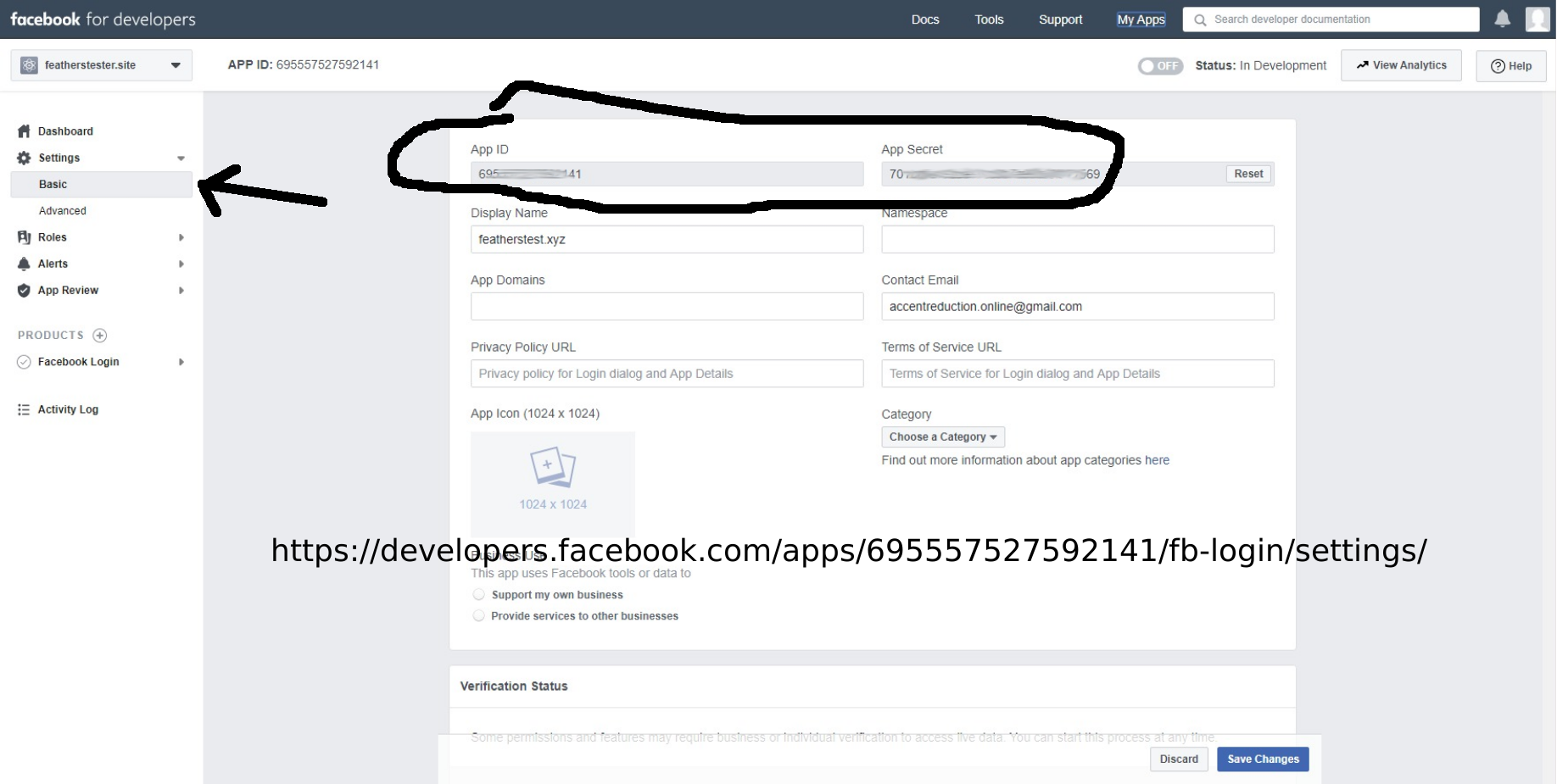
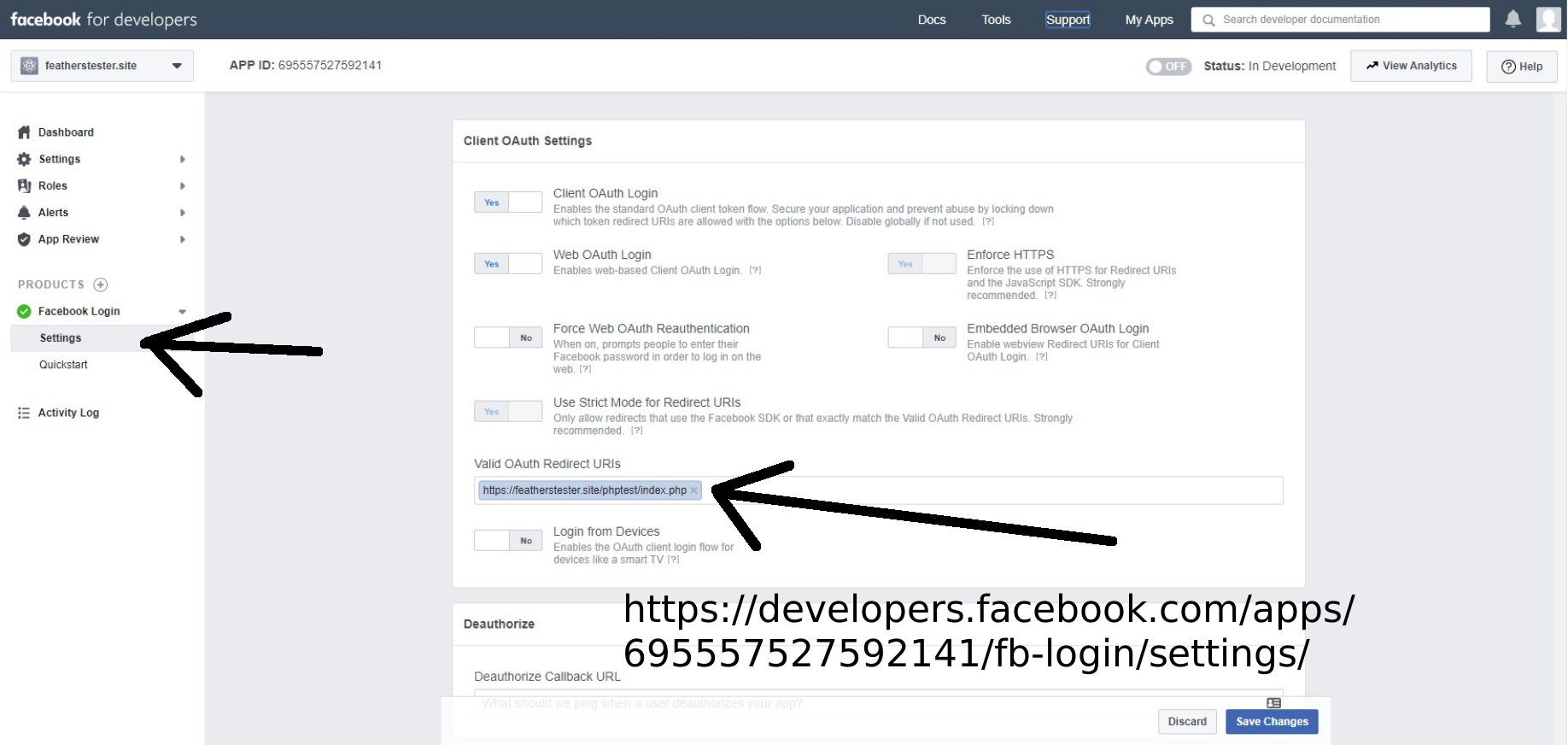
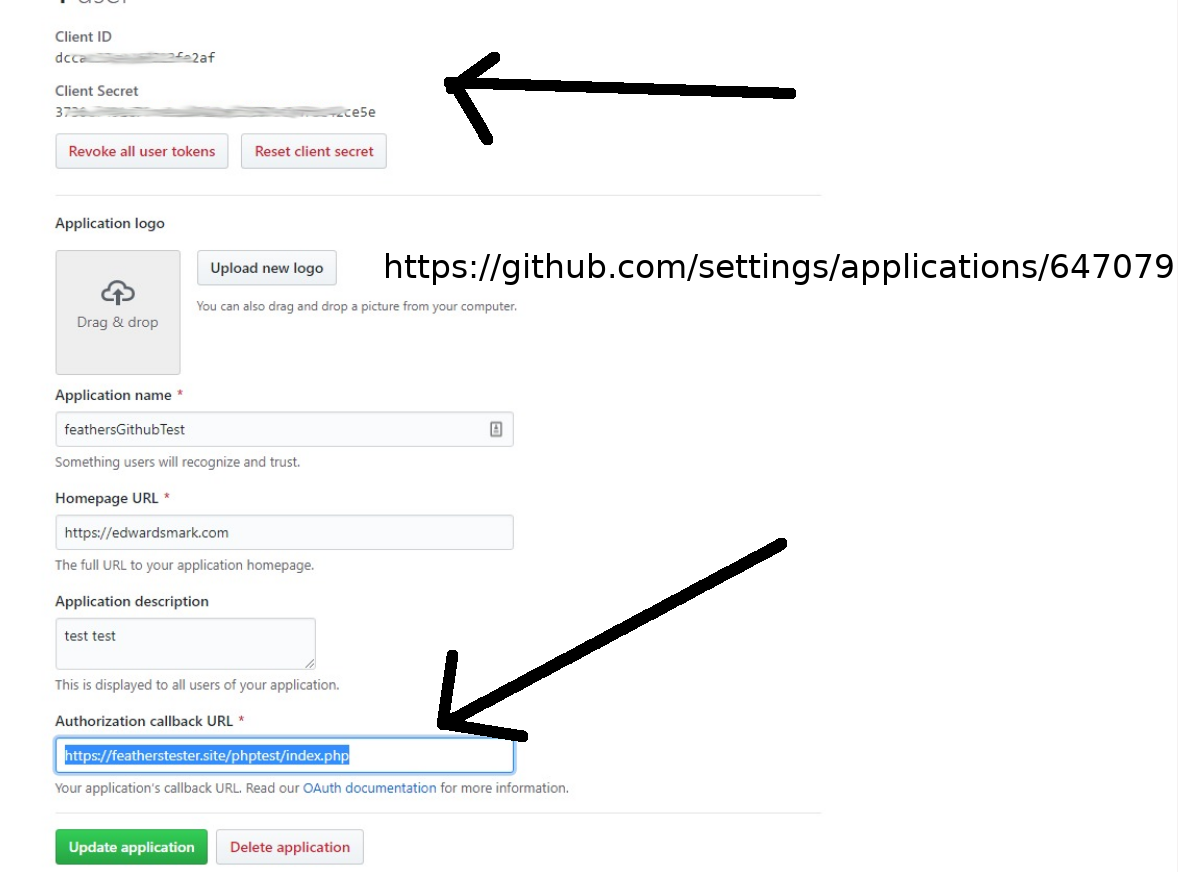
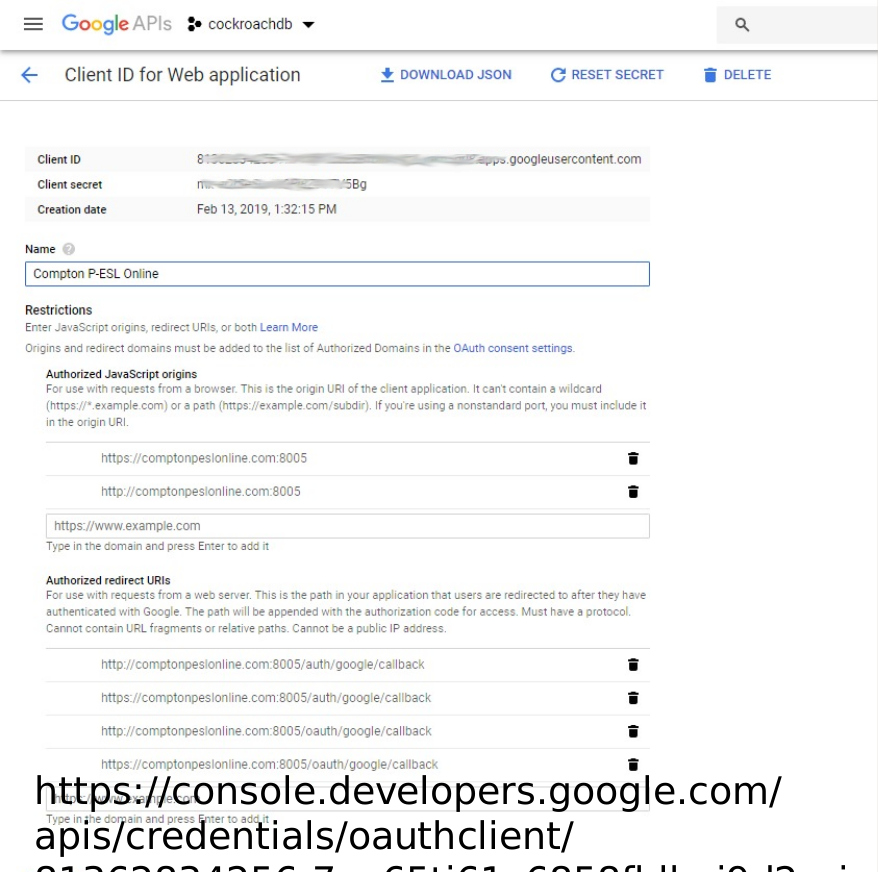
3) make sure facebook has the correct domain name and callback for facebook:

4) to get extra fields such as “email”:

https://docs.feathersjs.com/cookbook/authentication/facebook.html#getting-profile-data

in ./src/authentication.js:
const { AuthenticationService, JWTStrategy } = require(‘@feathersjs/authentication’);
const { LocalStrategy } = require(‘@feathersjs/authentication-local’);
const { expressOauth, OAuthStrategy } = require(‘@feathersjs/authentication-oauth’);

// added all below:
const axios = require(‘axios’);
class FacebookStrategy extends OAuthStrategy { async getProfile (authResult) { // This is the oAuth access token that can be used // for Facebook API requests as the Bearer token const accessToken = authResult.access_token;

const { data } = await axios.get(‘https://graph.facebook.com/me’, { headers: { authorization: `Bearer ${accessToken}` }, params: { // There are fields: ‘id,name,email’ } }); return data; } async getEntityData(profile) { // `profile` is the data returned by getProfile const baseData = await super.getEntityData(profile); return { …baseData, email: profile.email }; } } // end of added

module.exports = app => { const authentication = new AuthenticationService(app);

authentication.register(‘jwt’, new JWTStrategy()); authentication.register(‘facebook’, new FacebookStrategy()); // added! app.use(‘/authentication’, authentication); app.configure(expressOauth()); };

COMPLETE EXAMPLE FOR FACEBOOK AND GOOGLE:

./config/default.json:

{
  “host”: “featherstest.website”,
  “port”: 3030,
  “public”: “../public/”,
  “paginate”: {
    “default”: 10,
    “max”: 50
  },
  “authentication”: {
    “entity”: “user”,
    “service”: “users”,
    “secret”: “i/E4LXXXXXXXFxffc=”,
    “authStrategies”: [
      “jwt”,
      “local”
    ],
    “jwtOptions”: {
      “header”: {
        “typ”: “access”
      },
      “audience”: “https://yourdomain.com”,
      “issuer”: “feathers”,
      “algorithm”: “HS256”,
      “expiresIn”: “1d”
    },
    “local”: {
      “usernameField”: “email”,
      “passwordField”: “password”
    },
    “oauth”: {
        “redirect” : “/”,
         “defaults” : {
                “protocol” : “https”,
                “host” : “featherstest.website”
        },
      “facebook”: {
        “key”: “2XXXXXXXXXXXXXXXXXXXX107”,
        “secret”: “dfXXXXXXXXXXXXXXcebdbd”,
        “scope”: [“public_profile, email”]
      },
      “google”: {
        “key”: “813XXXXXXXXXXXXXXXXXX4di.apps.googleusercontent.com”,
        “secret”: “XXXXXXXXXXXXXXXXXXXXXMi”,
        “scope”: [
          “email”,
          “profile”,
          “openid”
        ]
      }
    }
  },
  “nedb”: “../data”
}

./src/authentication.js

const { AuthenticationService, JWTStrategy } = require(‘@feathersjs/authentication’);
const { LocalStrategy } = require(‘@feathersjs/authentication-local’);
const { expressOauth, OAuthStrategy } = require(‘@feathersjs/authentication-oauth’);

const axios = require(‘axios’);

class FacebookStrategy extends OAuthStrategy { async getProfile (authResult) {

const accessToken = authResult.access_token; const { data } = await axios.get(‘https://graph.facebook.com/me’, { headers: { authorization: `Bearer ${accessToken}` }, params: { fields: ‘id,name,email,picture’ } }); return data; } async getEntityData(profile) { const baseData = await super.getEntityData(profile); return { …baseData, name: profile.name, email: profile.email }; } }

class GoogleStrategy extends OAuthStrategy { async getEntityData(profile) {

const baseData = await super.getEntityData(profile); return { …baseData, profilePicture: profile.picture, email: profile.email }; } }

module.exports = app => { const authentication = new AuthenticationService(app);

authentication.register(‘jwt’, new JWTStrategy()); authentication.register(‘local’, new LocalStrategy()); authentication.register(‘facebook’, new FacebookStrategy()); authentication.register(‘google’, new GoogleStrategy()); app.use(‘/authentication’, authentication); app.configure(expressOauth()); };

./public/index.html (partial)


…………..

============================================


port forwarding: (2025-05-22)
Mark Edwards

,

---

nanostation slrh buttercube

Oct 26, 11:18 AM

========== 2022-04-16
INSTALLATION: always use https://www.raspberrypi.com/software/
“Install Raspberry Pi OS using Raspberry Pi Imager” – never just “click-drag” and image, that does NOT work
===========================

default ip 192.168.123.20 username/password: ubnt/ubnt

1) set new IP number under “Network”

2) under “Wireless”, select WDS (transparent bridge mode

3) scan (or manually enter SSID name)

4) select wpa2-AES for security

5) password

6) rename radio

raspberry pi computer:
user: pi
pass: raspberry ??me??57!

@reboot ( sleep 15 ; bash -vx /home/pi/iptablesSetup.bsh ) > /home/pi/iptablesSetup.bsh.log 2>&1

  1. since the current modem does not allow for remote access, just grab pages for display (cheap shot)
    */5 * * * * sudo curl —insecure https://192.168.1.254/xslt?PAGE=A_0_0 | sed —expression=‘s|href=”/?css|href=“http://slrh.edwardsmark.com/css/c|; s||PASSWORD!|;’ > /var/www/html/modemStatusHome.html
    */5 * * * * sudo curl —insecure https://192.168.1.254/xslt?PAGE=C_0_0 | sed —expression=‘s|href=”/?css|href=“http://slrh.edwardsmark.com/css/c|;’ > /var/www/html/modemStatusSettingsSystemInfo.html

cat /home/pi/iptablesSetup.bsh;
#! /bin/bash
PI_IP=192.168.100.50;

sudo echo “1” > /proc/sys/net/ipv4/ip_forward ;

sudo iptables —flush ; ## there is probably a better way….

sudo iptables -I INPUT 1 -i eth0 -p tcp —dport 8080 -j ACCEPT ; ## for rasberry pi apache2 server…..

sudo echo “Setting ifconfig eth0 to ${PI_IP} !!!!!! “;
sudo ifconfig eth0 ${PI_IP} netmask 255.255.255.0 up ;

##### UNUSED BELOW:

sudo apt-get update ;
sudo apt-get install socat ;
sudo apt-get install firewalld;
sudo systemctl start firewalld ;
sudo systemctl stop firewalld ;
sudo systemctl enable firewalld ;
sudo systemctl status firewalld ;
sudo firewall-cmd —zone=public —add-port=80/tcp —permanent ;

sudo ifconfig eth0 192.168.1.5 netmask 255.255.255.0 up ;
sudo route add default gw 192.168.1.1 ;
sudo echo “nameserver 1.1.1.1” > /etc/resolv.conf ;
ping google.com ;

socat commands:
socat -V ;
socat TCP4-LISTEN:80,fork,reuseaddr TCP4:192.168.1.21:80 ;

Mark Edwards

,

---

« Older Newer »

Manage